What you are about to do
Three things, and it takes about five minutes:
- Sign in with your Discord account.
- Tell the site your RuneScape name.
- Prove the RuneScape account is yours.
Step 3 is called verifying. It matters because your RuneScape name carries your clan rank. Without a check, anyone could type in a clan leader's name and get their access.
What you need
- A Discord account.
- Your RuneScape login, because you will change one setting on the RuneScape website.
- Your exact RuneScape name, as it appears in game.
You never give RSClanTrack your RuneScape password. You only ever log in on RuneScape's own website.
Step 1: sign in
- Go to rsclantrack.com.
- Press Sign In, at the top right.
- Discord asks whether RSClanTrack can see your username. Press Authorise.

You come back to RSClanTrack, signed in.
Step 2: set up your profile
The first time you sign in, you see Set up your profile.
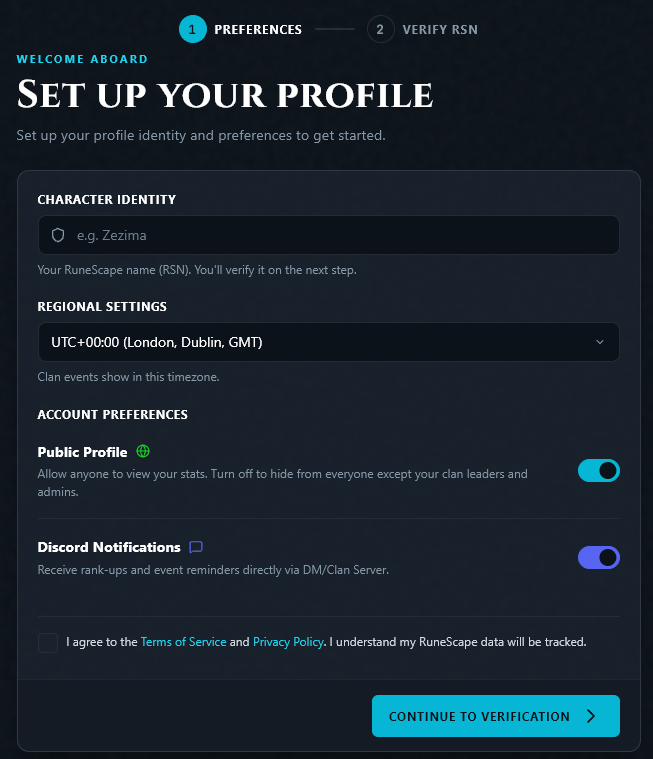
- Under Character Identity, type your RuneScape name. Use your main character, the one in your clan.
- Under Regional Settings, choose your time zone. Clan events are shown in it.
- Under Account Preferences, choose what you want:
- Public Profile: on lets anyone view your stats. Off hides them from everyone except your clan's leaders.
- Discord Notifications: rank-ups and event reminders by direct message.
- Tick the box to agree to the Terms of Service and Privacy Policy.
- Press Continue to Verification.
You can change all of these later in your account settings.
Step 3: prove the account is yours
You are now on the Verify RSN page. It asks you to flip one privacy switch on the RuneScape website. Only the real owner of the account can do that, so when the site sees the switch change, it knows it is you.
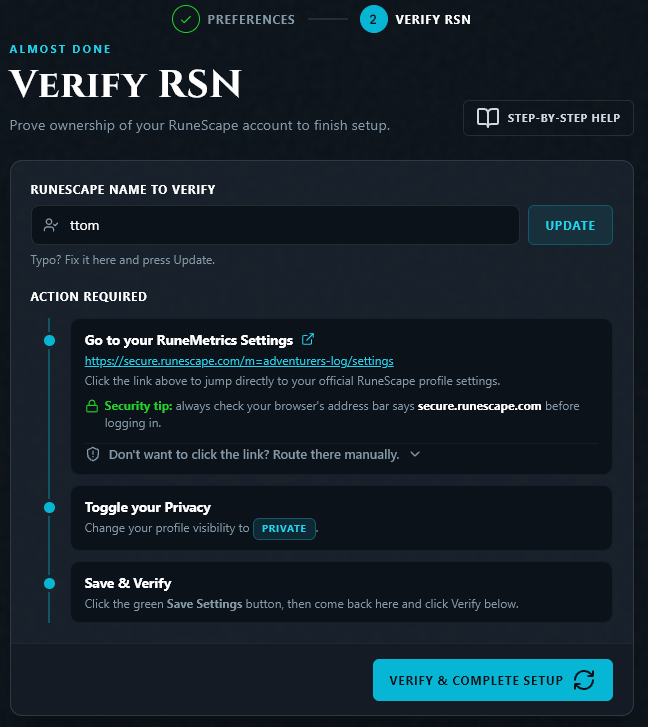
3a: open your RuneMetrics settings
Press Go to your RuneMetrics Settings on the page. It opens RuneScape's own website. Log in there if asked.
Before you type your RuneScape password, check the address bar says secure.runescape.com. RSClanTrack never asks for your password.
Would you rather not click a link? You can get there from the game:
- Go to the in-game Lobby.
- Select the message icon in the top right.
- Select Back to Account.
- Scroll down and click RuneMetrics Profile.
3b: change your profile's privacy
The Verify RSN page tells you which way to switch it: to Public or to Private. It always asks for the opposite of what your profile is now.
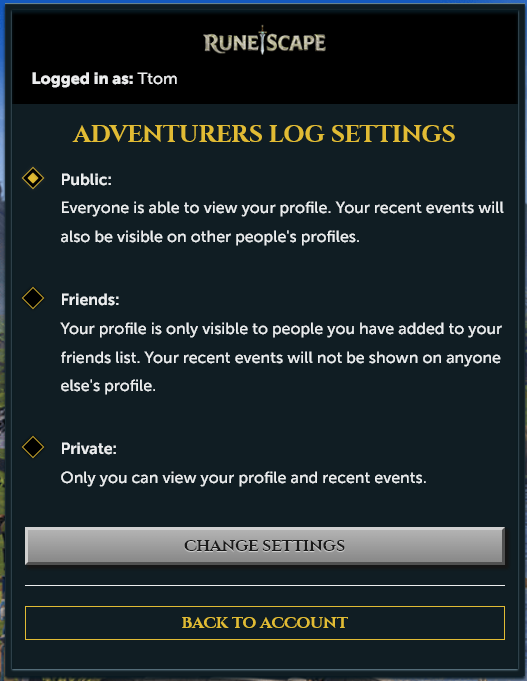
The RuneScape page is called Adventurers Log Settings and has three options: Public, Friends and Private. Select the one the Verify RSN page asked for.
3c: press Change Settings
Press the Change Settings button under the options. It turns yellow once you have picked a different option. This is the step people miss: selecting an option without pressing the button changes nothing.

3d: come back and verify
Return to the RSClanTrack tab and press Verify & Complete Setup.
If it worked, you see "Success!" and you are taken to your profile. You are verified.
3e: put your profile back to Public
If the page asked you to switch to Private, go back, select Public again and press Change Settings.
Keep your RuneMetrics profile Public. A private profile hides your activity log, so your drops, boss kills and citadel caps can't be counted for clan events or rank points.
If the check fails
You see "Verification failed. Your profile hasn't changed to ... yet", along with how many more failed tries you have before manual verification opens up. The page also keeps a count of your failed checks.
Work through these:
- Did you press Change Settings? Go back to the RuneScape tab, check the right option is selected, and press the yellow button.
- Is the name right? The page shows the RuneScape Name to Verify. If there is a typo, fix it in that box and press Update.
- Did you switch it the right way? Re-read which way the page asked for.
- Give it a minute. RuneScape's website can take a moment to catch up. Wait, then press Verify again.
- Are you logged in to the right RuneScape account? If you have more than one, make sure it is the one with this name.
The other way: manual verification
If you would rather not change your privacy setting, or the automatic check won't work for you, a member of RSClanTrack staff can verify you by hand from a screenshot.
Manual verification can take up to 48 hours to be approved, because a person checks each one. The automatic check in step 3 is instant, so try that first if you can.
How to get to it
On the Verify RSN page, press Verify manually instead, beside the Verify button. You can choose it at any time, with no failed tries needed.
Changed your mind? Press Back to automatic verification to return to the privacy-switch steps.
The page also switches to manual verification by itself in two cases, and then there is no way back to the automatic check:
- After the automatic check has failed 5 times. The page counts your failures and tells you how many tries are left. It then says Verification Limit Reached.
- When RuneScape's own servers are down. It then says Jagex Servers Offline.

What to send
The page shows you a short code. This is how staff know your screenshot is new and really yours.
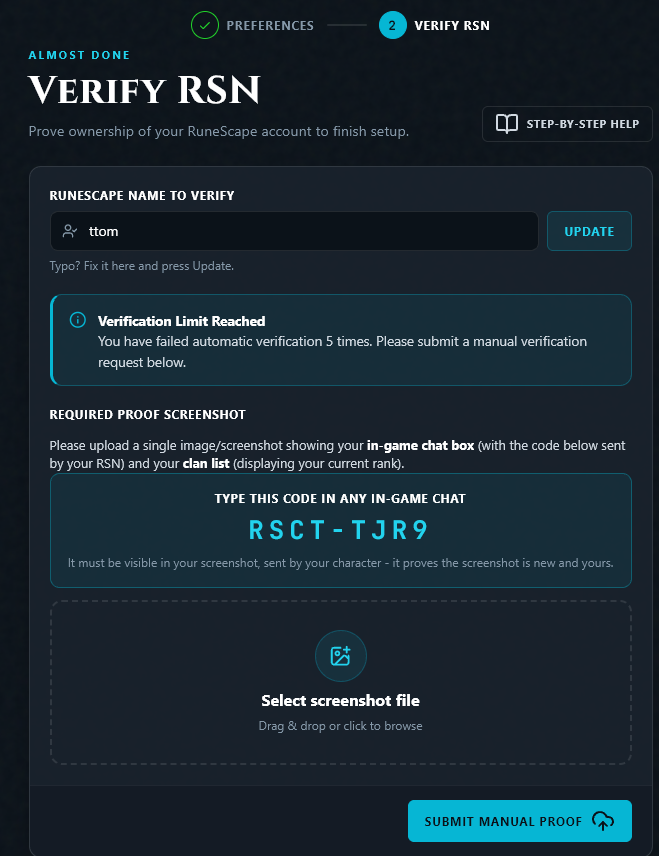
- Log in to RuneScape on the character you are verifying.
- Type the code into any in-game chat and send it.
- Open your clan list, so it shows your rank.
- Take one screenshot that shows both:
- your chat box, with the code sent by your character, and
- your clan list, showing your current rank.
- On the Verify RSN page, press Select screenshot file and choose the screenshot. You can also drag it onto the box.
- Press Submit Manual Proof.
A good screenshot looks like this. The code is in the chat box, sent by the character being verified, and the clan list beside it shows that character's rank:
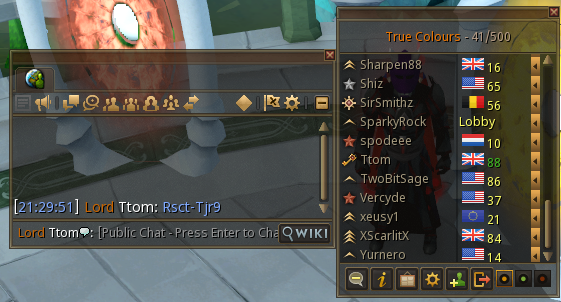
The game may change the capital letters when you send the code, as it has here. That is fine.
What happens next
The page shows Verification Pending, and you get a notification on the site.
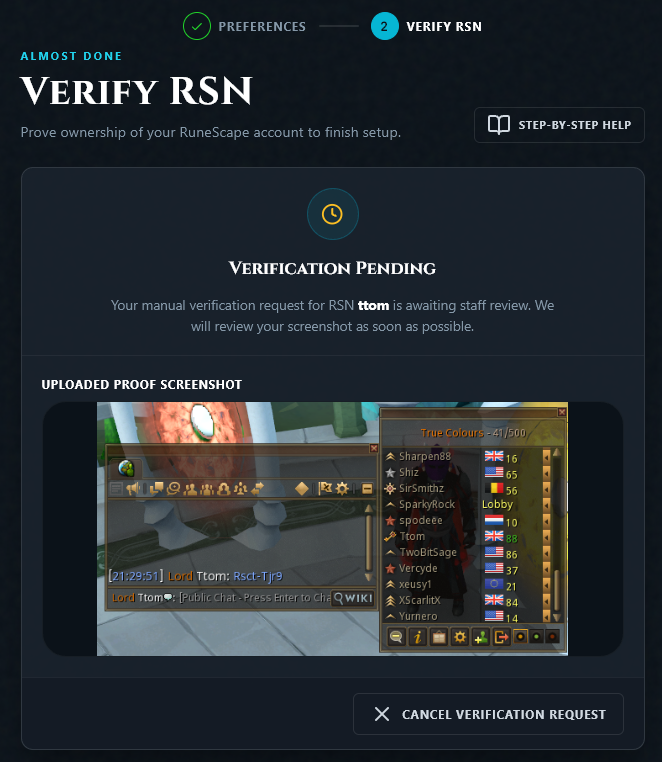
- A member of staff looks at your screenshot. This is done by a person, so allow up to 48 hours.
- If it is approved, you are verified and notified.
- If it is rejected, the page shows Manual Verification Rejected with a note from staff saying why. Fix that and send a new screenshot. You are given a new code, so type the new one.
While a request is pending you can't change your RuneScape name. To change it, press Cancel Verification Request first.
After you are verified
- Your clan is found for you. If your character is in a clan RSClanTrack tracks, your account is connected to it.
- Clan staff get their tools. If your in-game rank is high enough, clan management opens up for you.
- The Discord bot already knows you. You signed in with Discord, so your RuneScape name is tied to your Discord account. In your clan's server the bot can give you your roles and sign you up for events with no extra step.
Verifying an alt
You can add other characters to your account in your account settings, under alts. Each one is verified the same way: switch that character's privacy option, press Change Settings, and verify. Make sure you are logged in to the RuneScape account that owns the alt when you do it.
Common problems
"Jagex couldn't find an account named ..." The name isn't on RuneScape's hiscores. Check the spelling. A brand-new account, or one that hasn't played in a long time, may not be listed.
"Verification session expired. Please refresh the page." You left the page open too long. Refresh it and start step 3 again. The page may now ask for the opposite switch.
"Too many failed attempts. Please try again later." Use manual verification instead: press Verify manually instead on the Verify RSN page.
I can't find the privacy setting. Use the game route in step 3a: Lobby, message icon, Back to Account, RuneMetrics Profile.
My screenshot was rejected. Read the staff note. The usual reasons are that the code isn't visible, it was sent by a different character, or the clan list isn't in the picture.
I changed my RuneScape name. Update it in your account settings. You will be asked to verify the new name.