What you are about to do
- Add the bot to your Discord server, from your clan's management page.
- Check it works.
Adding it from clan management links the server to your clan for you, so there is normally nothing else to do.
It takes a few minutes. Once it is done, the bot can announce what happens in your clan, give members their roles, run events and more.
Before you start
You need both of these:
- To be a clan admin on RSClanTrack. Your clan must be claimed: see Register your clan.
- The Manage Server permission in the Discord server. Server owners and admins have it.
Step 1: open the bot page
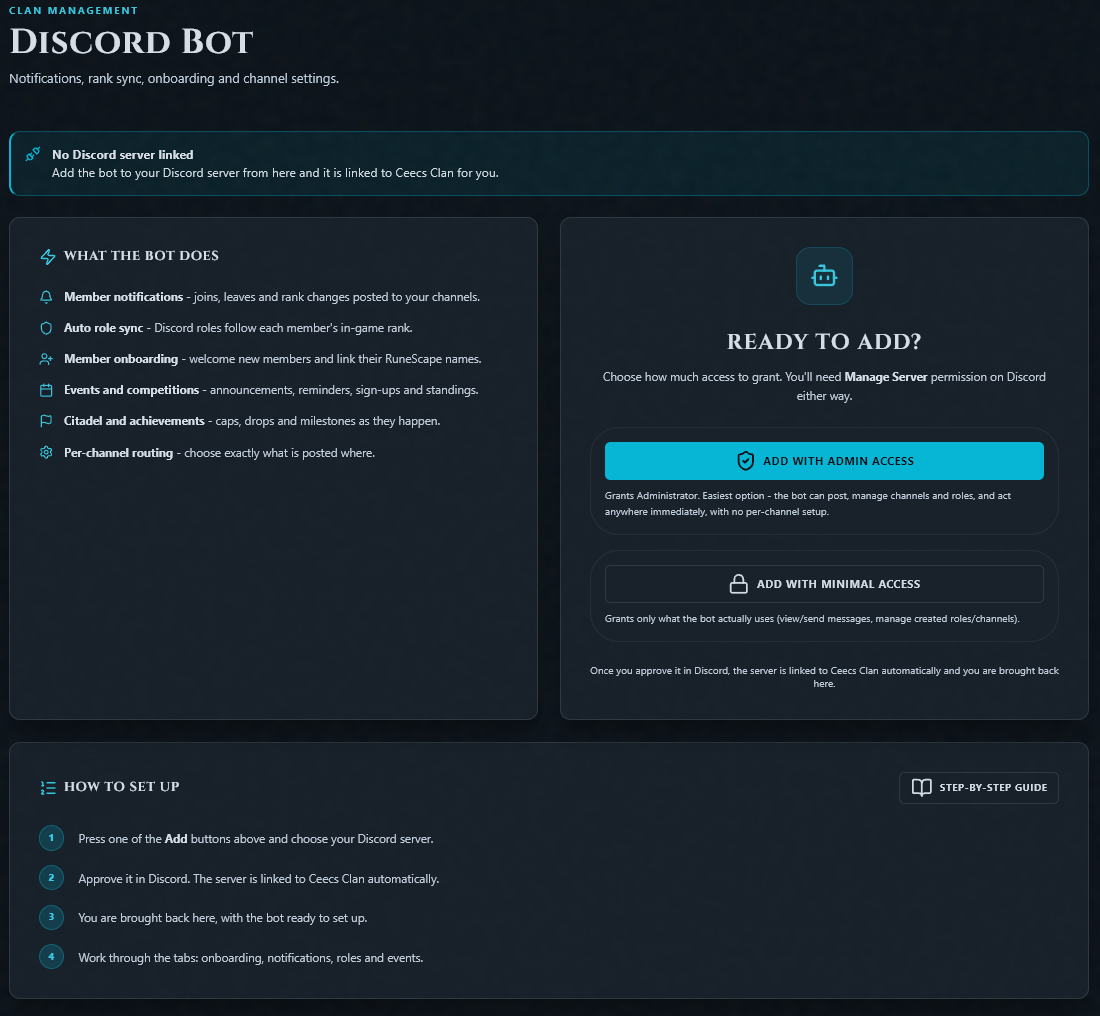
Go to clan management and choose Discord. If no server is linked yet, the page says No Discord server linked, and under Ready to add? it shows the two buttons for adding the bot.
You can also reach the bot's own page with /get-bot in any server that already has the bot.
Step 2: choose how much access to give
There are two buttons. Both add the same bot. They differ in what Discord permissions it starts with.
| Button | What it grants | Choose it if |
|---|---|---|
| Add with Admin Access | Discord's Administrator permission. | You want the easy route. The bot can post, manage roles and channels anywhere, with no per-channel setup. |
| Add with Minimal Access | Only what the bot uses: viewing and sending messages, and managing the roles and channels it creates. | You prefer to give as little as possible, and don't mind allowing the bot into each channel yourself. |
You can change the bot's permissions later in your server's settings.
Step 3: approve it in Discord
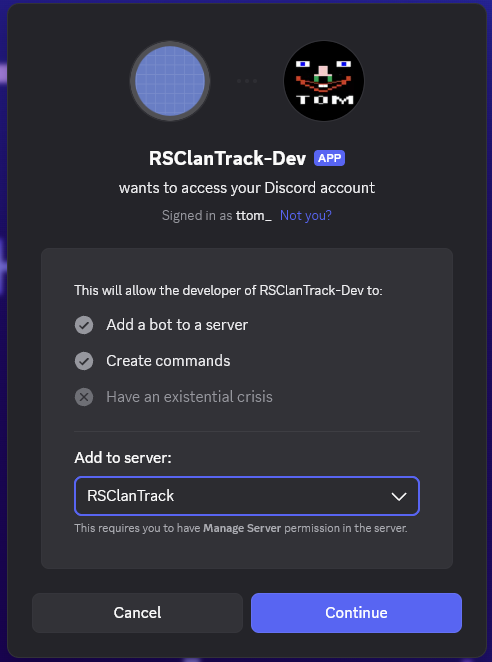
Discord opens and asks where to add the bot.
- Under Add to server, choose your clan's server.
- Press Continue.
- Check the permissions listed and press Authorise.
You are sent back to RSClanTrack.
Step 4: the server is linked for you
Because you started from your clan's management page, the site already knows which clan the server is for. It links the two, makes this your clan's main server, and brings you back to the Discord page with the message "Bot linked to ... as its main server!".
You can skip straight to Step 5: check it works.
When you are asked to link it yourself
You see a Link Bot to Your Clan form instead if your clan already has a main server. The site asks whether this new one should replace it or sit beside it.
On that form:
- Check the Server Name. It is filled in from Discord and is only a label on your dashboard.
- Choose the Server Type. See Main server or admin server.
- Press Link Server.
If the server wasn't detected
Use Select Discord Server and pick it from the list. The list only shows servers where you are an admin and the bot has already joined.
Still not there? Press Enter Server ID manually:
- In Discord, open User Settings, then Advanced, and switch on Developer Mode.
- Right-click your server's icon and choose Copy Server ID.
- Paste it into Discord Server ID and press Link Server.
If the bot was added another way
If someone adds the bot from a direct link instead of from the site, the server isn't linked to any clan yet. The bot notices and posts a Register this server message in the server.
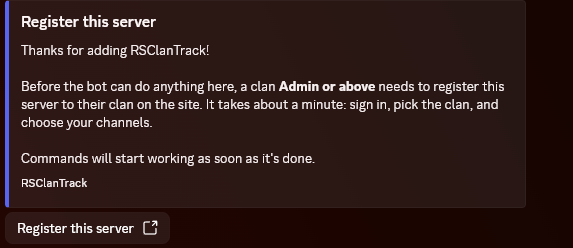
Until that is done the bot can't do anything there. To finish:
- A clan Admin or above presses the Register this server button under the message.
- It opens RSClanTrack. Sign in if asked.
- Pick the clan and link the server, as in Step 4.
It takes about a minute, and the bot's commands start working as soon as it is done.
Main server or admin server
| Type | What it is |
|---|---|
| Primary | Your main clan server. Member notifications, rank role sync and the event calendar all happen here. A clan has one. |
| Admin | A staff or officer server alongside the main one, with its own channel and role settings. You can have several. |
For most clans, the server everyone is in is the Primary one.
If your clan already has a main server and you link another, you are asked what to do:
- Make this the main server: notifications, rank sync and events move here. The old one becomes an admin server and keeps its settings.
- Add it as an Admin server: the current main server stays as it is.
Step 5: check it works
In your Discord server, type /about in a channel the bot can see. If the bot replies, it is connected.
Then try /help. It lists the commands you can use there.
Slash commands can take a few minutes to appear in a server the bot has only just joined.
What to set up next
Open clan management and choose Discord. Each tab is a job, and each has its own guide:
| Tab | What you set up | Guide |
|---|---|---|
| Member Onboarding | Welcoming new members and linking their RuneScape names | Set up member onboarding |
| Notifications | Which clan happenings are announced, and where | Set up Discord notifications |
| Events | Event announcements, reminders and sync | Set up Discord for events |
| Roles & Ranks | Giving each clan rank a Discord role | Sync clan ranks to Discord roles |
| Leveling | Discord XP and levels | Discord activity leveling |
| Server Safety | Spam protection and pruning | Discord server safety |
Start with Member Onboarding. Until members have linked their RuneScape names, the bot doesn't know who anyone is.
If you chose Minimal Access
The bot can only work in channels it is allowed into. For each channel you want it to post in, give the bot's role:
- View Channel
- Send Messages
- Embed Links
- Attach Files
- Read Message History
And remember your members need Use Application Commands in the channels where they will run the bot's commands.
Common problems
"You need to be a clan admin to link a Discord server." Your RSClanTrack account isn't an admin of the clan. Check you are verified and hold Admin rank or higher in game, and that the clan has been claimed.
The bot joined but nothing shows in clan management. The server was added but not linked, which happens when the bot is added from a direct link. Use the Register this server button the bot posted in the server, or add the bot again from your clan's Discord page.
My server isn't in the list. The list shows servers where you are an admin and the bot has joined. If the bot is there, enter the server ID by hand.
I don't have the Manage Server permission. Ask your Discord server's owner to add the bot, or to give you a role with that permission.
The bot is in the server but doesn't reply. Check it can see and send messages in that channel. With Minimal Access you grant that per channel.
I added the bot to the wrong server. Remove it from that server in Discord (right-click the bot, then Kick), and start again from Step 1.